
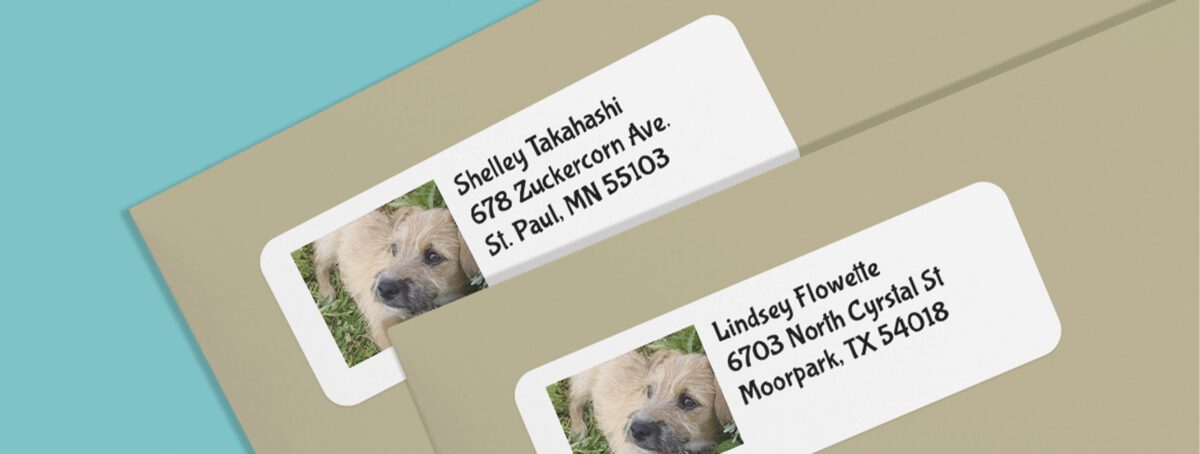
Want to add personality to your mail? Create your own personalized mailing labels and add a photo, logo, or design. Make your invitations, announcements and even gift labels stand out. Here’s how to add an image to create custom labels with Avery Design & Print.
The Avery Design & Print software makes it easy to personalize any Avery Label. For this project, we’ll be using the White Easy Peel® Return Address Labels, product number 5167.
Okay, let’s get started. Go to avery.com/print to access Avery Design & Print. Enter the Avery product number in the box and press “Enter”.
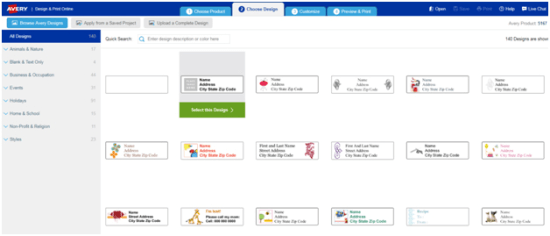
The next screen will show you an assortment of design templates for the product you entered. You can view design collections by category using the menu on the left.
Since we’re using our own photo as the design, we’ll choose the template with a gray placeholder box for our image. Double-click the template to select and load.
Now let’s add the photo. Click the gray box that reads “PLACE IMAGE HERE.”
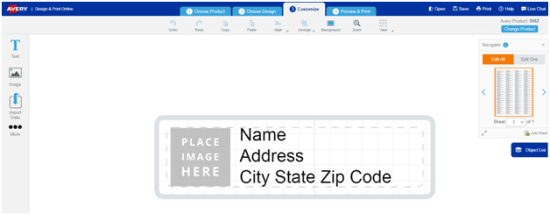
Using the menu on the left side of the screen, click the button that reads, “Replace Image.”
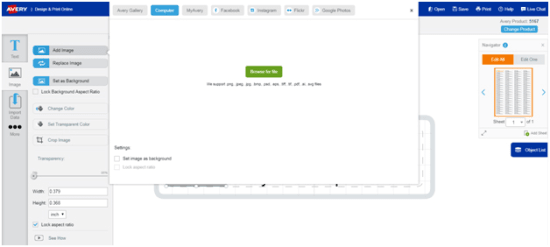
Locate the photo you wish to use. To locate an image stored in your computer, highlight the “Computer” tab. Then click the green “Browse for File” button in the middle of the screen.
You can also add your photos from the Avery Gallery, Facebook, Instagram, Flickr or Google Photos.

Once you select the photo you wish to use, it’ll appear on your design template. You can format the image using the tools from the menu on the left.
To resize the photo, select the image and use the handles around the photo to make it larger or smaller. To trim the image, use the crop tool found in the menu.
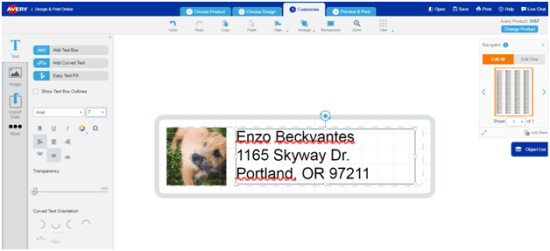
Now enter your address info. Click to highlight the text box, then add your info.
To do a mail merge, check out this guide on how to turn your address list into labels.
Use the menu on the left to change the font, the text color, adjust the font size, and more. To move the text, select the text box so the broken line around it becomes a solid line. Then move the text with your mouse or arrow keys on your computer.
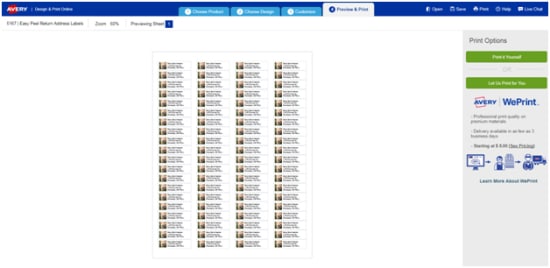
Click the “Preview & Print” button in the lower-right corner of the screen. When you’re ready to print, choose your print option on the right side of the screen. You can choose to print it yourself or use Avery WePrint™, our professional printing service, to print for you.
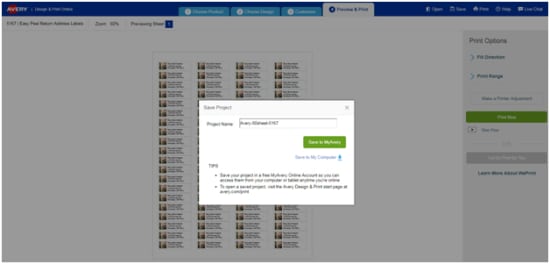
Don’t forget to save your project on your computer, or set up a free Avery account to save online.





I was really struggling with Word/Powerpoint etc to create a simple label with a picture that had text on it. I did a Google search for a tool and just discovered that Avery supplies one.
I tried it and it works like a dream. In a couple of minutes I created my label which fit exactly into the Avery 5620 form with no fuss and muss. Wish I had known before that it existed.
You really should put this info on the packages.
Thanks again for making this task so easy now. Will be using Avery labels and this tool exclusively in the future!!!
Hmmmm Alen, that is strange. Avery.com/templates is usually on the package and the label sheet. Would you please send an email to avery.com/help to let us know where and when you purchased these labels? Thank you so much! We’re so glad you like our labels and Avery Design & Print.