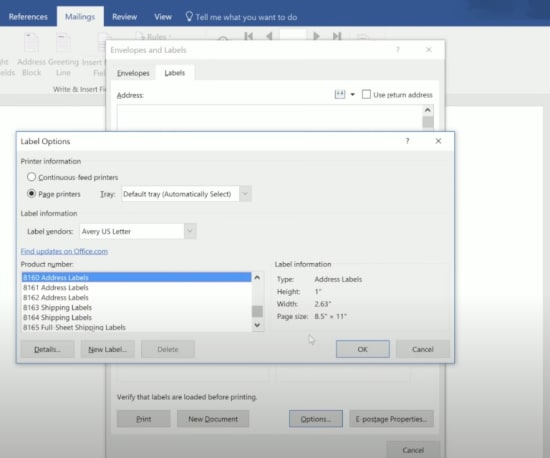
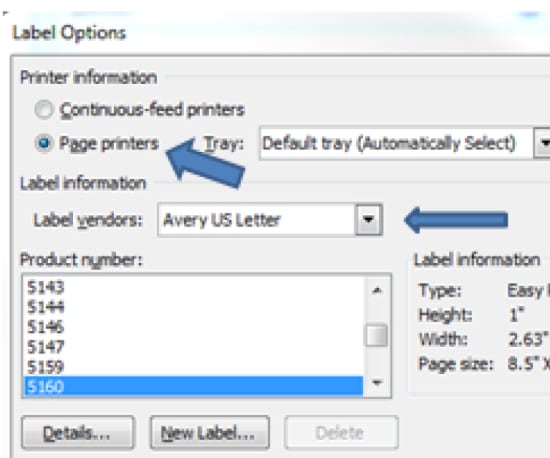

Easily search for your template by product category and then choose from one of our a professional designs or blank templates to customize within Word.
Find a TemplateHere's how to be sure your product, page settings and printer settings can help you get the best print results.
Learn howIf you have Word 2007 or a newer version, follow the instructions below to find Avery templates built in to Microsoft® Word.
Note: Older versions of Word are slightly different.
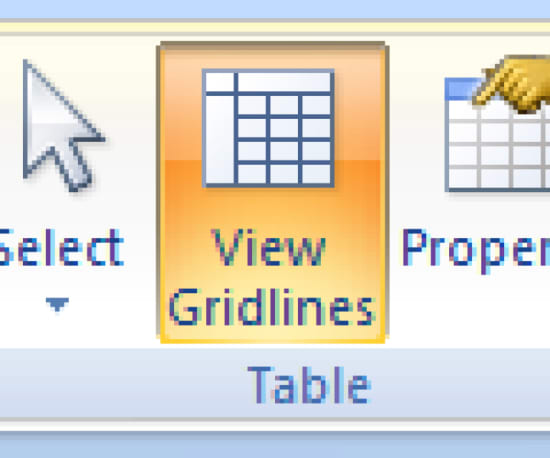
If you're working in Microsoft Word and your gridlines disappeared, you may need to enable the gridlines in order to see your actual card or label cells. If the template looks like a blank page, select Table Tools > Layout > Show Gridlines to view the template layout.
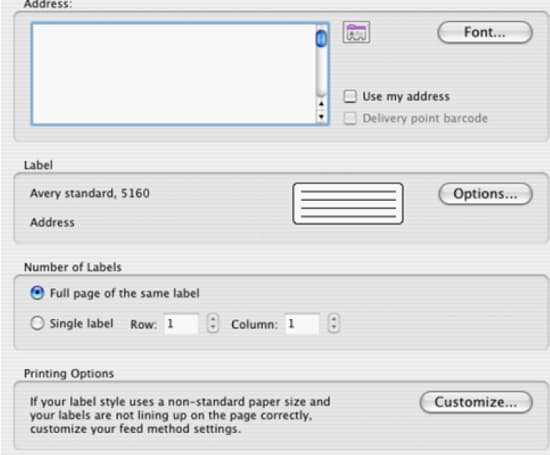
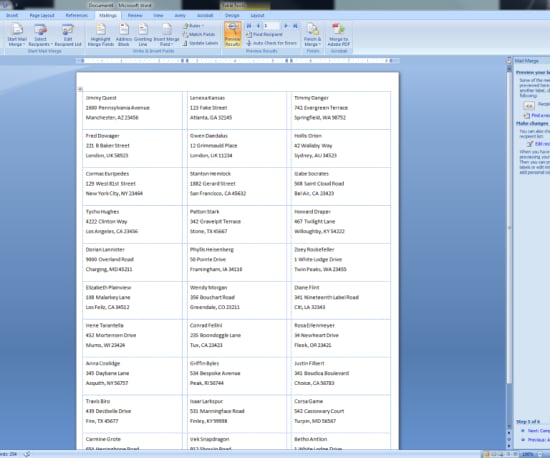
If you use Microsoft Office 2016 on a Mac computer, you can easily import addresses or other data from an Excel spreadsheet or from your Apple Contacts and add them to Avery Labels, Name Badges, Name Tags, or other products to edit and print using Microsoft Word for Mac. These steps will show you how to mail merge onto an Avery template, making it easy to prepare for mailings and meetings.
Double-click the Avery Word Template file you downloaded and saved to your copmuter. If the template looks like a blank page, select Table Tools > Layout > Show Gridlines to view the template layout.
Once the file is open, type your information into the template. Highlight the text you entered and use the tools in Microsoft Word to format the text.
Click the Insert tab in the Ribbon Toolbar to insert your own image, clip art, shapes and more.
Select your image in the template and click the Page Layout tab in the Ribbon Toolbar. Then click Text Wrapping and select In Front of Text in the drop down list.
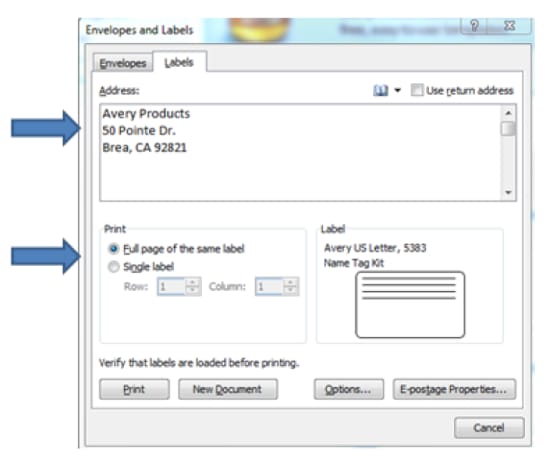
How to create a sheet of all the same labels:
Watch the video below to see how easy it is to do a mail merge in Microsoft Word.
The fastest way to download an Avery template is to go to avery.com/templates and type your Avery product or template number into the white Search Bar at the top center of the page. (Your product or template number can be found on the bottom right of your Avery packaging). You can also search by product category if you don't have your product or template number handy.
Once you've located your product, scroll down to the middle of the page to Download Templates. Select your preferred software from the drop-down menu and click Download Blank Template.
Note: Many Avery products have similar layouts but are different sizes, so make sure you use the correct template for your product. It's also important to be sure you're using the correct product type for your printer. (Inkjet-only products should only be used in inkjet printers, and laser-only products in laser printers).
See the tips and tricks for adding and editing text and pictures, clip art and other images in Avery templates for Microsoft® Word.
After you select your product, template and a pre-design, the Options for Entering Information screen appears. Check the box for using an existing data file or creating a new one.
Note: If you don't have a spreadsheet with all of your names and addresses, you can start with our pre-formatted files for Microsoft Excel or other database programs.
After uploading the data, you can choose which rows of data you want to use by adding the specific fields to your layout. You can also add punctuation and spaces, and edit your graphics in this phase. Click Next.
Your project is now complete. Choose which direction you want to print your labels or cards and Click Finish. Your project is now ready to print.
At any point you can click the Back button to return to the previous screen.
Make sure that you have downloaded and installed Avery Wizard for Microsoft Word.
Start Microsoft Word. Click the Avery tab at the top of the Microsoft Word Ribbon toolbar and click the Avery Wizard logo
If you do not see an Avery tab at the top of the Microsoft Word Ribbon toolbar, click the Office button at the top left and then click the Word Options button. The Word Options screen will appear. Click Add-Ins and then select Word Add-Ins from the Manage drop-down list. Click Go. The Templates and Add-ins dialog box will appear. Check AVWiz12s.dotm and click OK. Close Microsoft Word, then re-open Word. The Avery tab should be added to the Ribbon toolbar. Click the Avery tab and then click the Avery Wizard logo to launch the Avery Wizard.
The Avery Wizard will open, click the Next button.
If you know your Avery product number, type in the product number in the Product number or description field. Click Search. Searching by product number is the fastest way to locate your product. The product number is usually shown as a four or five digit number in large print on the front of the package.
Or select a Product Category from the drop-down list. You can view products, in the product list, in order by Product No. or by Description. Click the Product No. column to sort the list numerically by product number or the Description column to sort the product names alphabetically. You can then scroll down the list to locate and select the product.
Select the product template and click Next.
Select a pre-design for your product template and click Next to start personalizing your template.
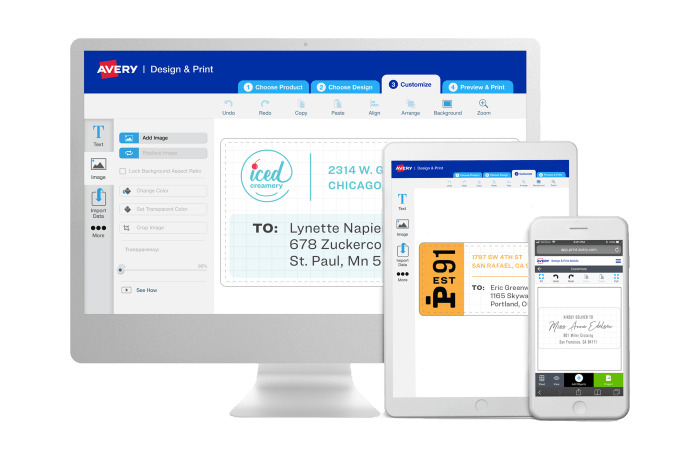
Create custom labels, cards and more using our free, easy-to-use design tool.