Create professional-looking business cards right from your desktop
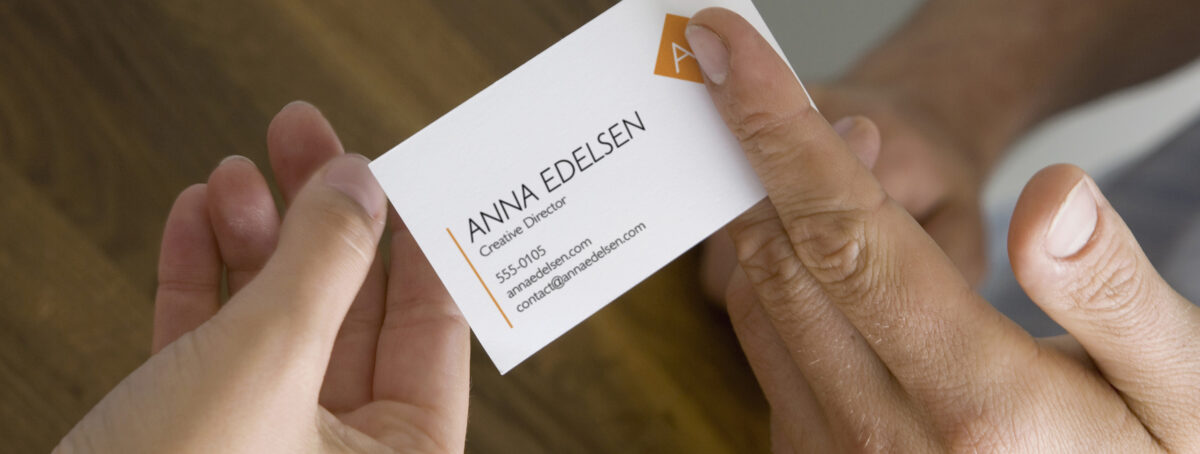
Printable business cards are ideal for anyone that needs to share contact information in a professional capacity. For instance, freelancers, independent contractors, office professionals, small businesses, non-profit organizations, and more.
At the same time, it’s important that business cards look professional because they represent you, your business, and/or your organization. For this reason, we’re sharing expert tips and step-by-step instructions for making your printable business card projects a success.
More resources you might like:
Tips for creating your own business cards
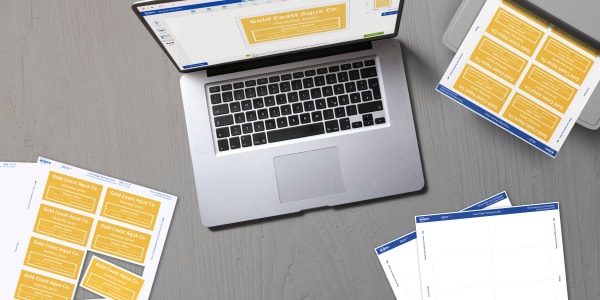
Avery printable business cards and free tools make it easy to create your own business cards right from your desktop. All you need are printable blank business cards, a computer or smart device with an internet connection, and a laser or inkjet printer.
You can design business cards for free using Avery Design and Print Online (ADPO) software. All you have to do is log in or create a free Avery account to use ADPO and hundreds of free business card designs you can modify for your needs.
ADPO allows you to edit, print, and save Avery templates at no cost. Not only is the software free, but there is nothing to download or install. Once you’ve finished designing your business cards, you can print them yourself or use our WePrint® professional printing service.
Best printable business cards for professionals
Avery printable business cards are designed for a wide range of uses from occasional hobby sellers to small business owners. For the most professional-looking DIY business cards we recommend using printable business cards that feature our Sure Feed® technology and/or our proprietary Clean Edge™ detail.
Sure Feed technology is our unique “grip” strip that helps printable sheets of cards or labels move more smoothly through average desktop printers. Printable business cards with Sure Feed technology print with fewer misalignments and paper jams. In other words, less wasted product and more efficiency.
Avery Clean Edge business cards are pre-scored, not perforated. So after printing, they break apart with smooth edges.
Step 1. Find your Avery product number
The easiest place to find your Avery product number is right on the front of the package. If you don’t have the package, but you purchased your printable business cards from avery.com, you can view your order history by clicking the icon for your Avery account, then choosing “Orders”.
For more in-depth help, check out these alternative ways to find an Avery product number. Or just give us a call at (800) 942-8379 and our excellent Customer Care team will be happy to help you.
Step 2. Get started designing
First, go to Avery Design and Print Online and click “Start Designing.” This will take you to a screen with your cursor already in a field to enter your product number. Then enter your product number to view layout/orientation options for templates.
Next click the option you like, then click Select This Template or Choose Design to move on to the next step in designing your printable business cards.
Step 3. Select a design to customize
On the next screen, you’ll find a variety of template options to choose from, including blank and pre-designed templates. If you want to design from scratch or upload your own design, choose a blank template. But, keep in mind that you can modify any existing design with your own text, colors, and/or company logo.
Choose a template by clicking on the template thumbnail, then clicking Select This Design or Customize to move on to the next step.
Step 4. Personalize your information
Once you select a design or click Customize, you will be taken to the Avery Design and Print Online customization screen. Here you will see the front of your printable business card.
If you chose a pre-designed template, you can edit, delete, or move existing design elements by clicking on them, then using the menu on the left side of the screen.
You can add shapes, backgrounds, and images in ADPO by clicking corresponding icons on the left to expand the left-side menu. Or, add your own images, such as a logo for your business.
Click existing text or click the Text tool on the left-side menu to open options for editing text. Here you can change the font style, size, color, and text alignment.
Visit our help page for customizing templates to find more tips, troubleshooting, and FAQs about designing printable business cards (and more) in ADPO.
Step 5. Customize the back of your business card
In the upper right-hand corner of the customization screen, you will find a small navigator box. Click Back of Sheet to get started on the back of your printable business cards.
When you click Back of Sheet a window will pop up asking you to select a design for the back of your card. You can choose to start with a blank design or a pre-designed option that matches the design you chose for the front.
Again, you can edit text and add or delete images. Use the Front of Sheet and Back of Sheet buttons to easily flip back and forth between the front and back designs.
Once you’re done designing both sides of your printable business cards, click Preview & Print to move to the next step.
Step 6. Preview, print and save
When you click Preview & Print you will see a simple preview of your entire sheet of printable business cards and two printing options on the right: Print it Yourself and Let Us Print For You (custom printing with Avery WePrint).
To print on your desktop or office printer, click Print It Yourself. This will open advanced printing options and a button to Get PDF to Print. You can use the advanced printing options or just skip to getting the PDF.
Saving your designs
When you click Get PDF to Print you will be prompted to save your design. It’s always a great idea to save your projects. Not only can you access designs saved to your Avery account from any smart device at any time, but you can also share projects via email.
In other words, you can create printable business cards anywhere and share them with your team on the spot.
Printing your business cards
After you’ve saved your project a window will open with printing tips and a green Open PDF button. Read the printing instructions carefully and keep in mind that the exact steps for printing your business cards depend on the browser that you’re using.
In general, to print your cards you will open the PDF and then click a print button. If you’re already very comfortable printing PDFs from your browser, your printable business cards should be quite easy.
Otherwise, use our helpful how-to video for printing Avery products to get step-by-step printing instructions for different browsers.
Most importantly, always review your PDF file thoroughly. Your PDF displays the best preview of how your business cards will print. If you need to make any changes click Edit My Design to go back to the editing screen.
Pro Tip: Before printing on your Avery cards, print a test sheet on plain paper. This will help you determine which direction to feed your Avery cards into your printer and allow you to check the print alignment.
Your desktop is home base for professional business cards
Free Avery design tools and our printable business cards designed for professionals make it easy to create business cards that look great. Especially cards with Sure Feed technology and/or the Clean Edge feature.
Whether you’re a small business owner, office professional, or a one-person operation, we put the power in your hands. Shop business cards and other printable products with SureFeed technology to create professional business cards, labels, and more— right from your desktop.